ArcRelay Print

Use the printer attached to your other computer.

Made for · Households and small workspaces sharing a printer

Add a shared computer’s installed printer to your system queue and print from the apps you already use.

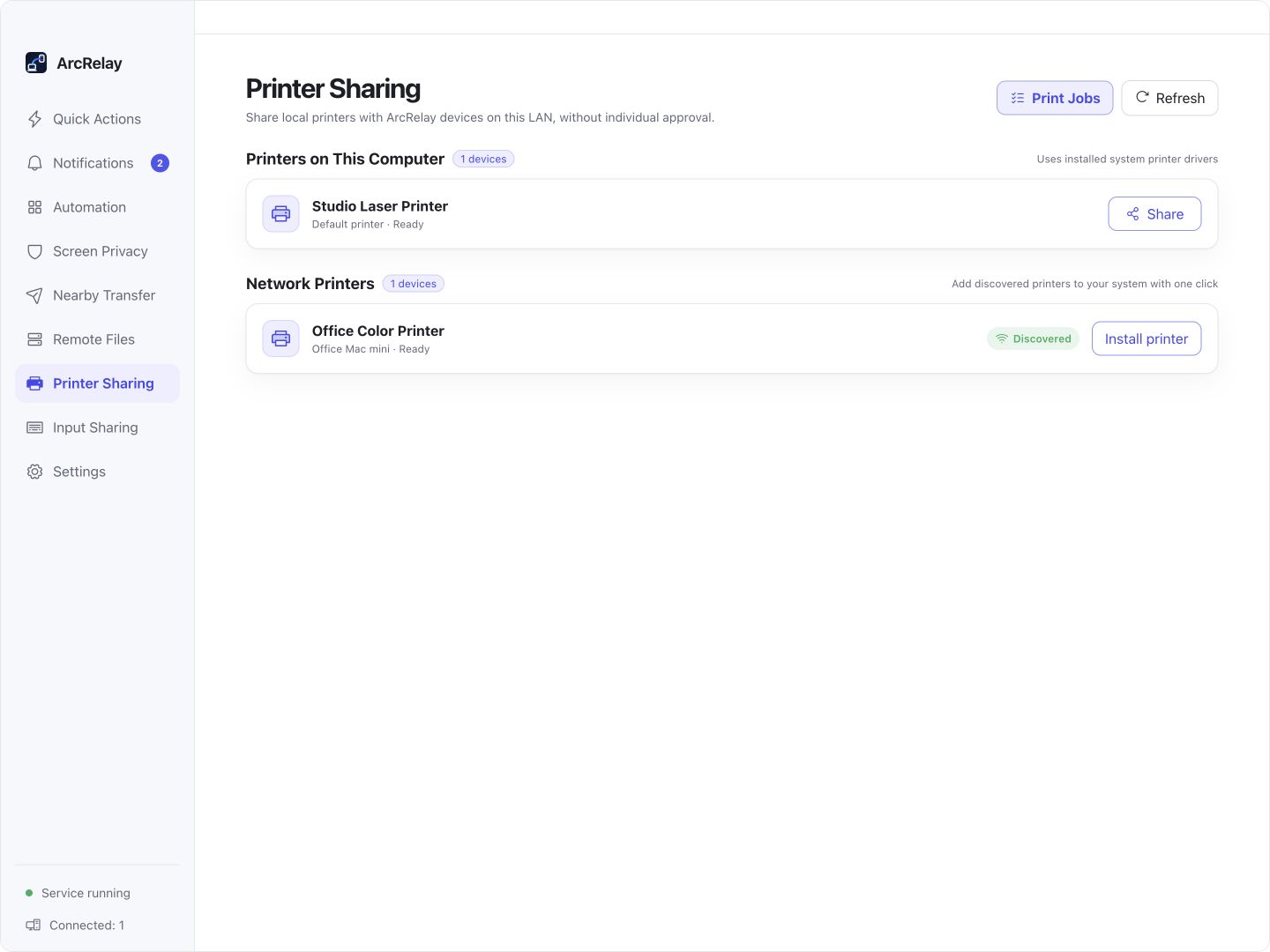
Suite Printer Sharing development preview with example printers. Sharing scope follows the settings in your version.
Local and network printers

Suite Printer Sharing development preview with example printers. Sharing scope follows the settings in your version.

Captured from an English development preview of the current desktop frontend with example devices and content. The installed version determines the interface and available features.

BUILT AROUND YOUR DAY

Keep using your familiar print dialog.

Use a printer attached to another computer from your own apps. Check the sharing scope and system queue, then follow the job result.

01

Every print starts by copying a file to the host

Share an installed printer

The host publishes a printer using its installed system driver. Discover it from the other device and add a remote system queue.

02

The remote printer is missing from your app

Register a system queue

After installation, select the queue in your app’s print dialog. System installation may require permission; paper and duplex options depend on the driver.

03

You clicked Print but cannot tell what happened

Check jobs and availability

Inspect sent and received jobs, failure reasons and cancellation. Both the host computer and printer must remain online.

Explore features, permissions and platform support

START WITH ONE TASK

Put the steps together.

01

Enable sharing on the printer’s host computer

Install the system driver on the host, then enable sharing for the selected printer.

02

Pair, grant printing access and install the remote queue

After pairing and printing authorization, add the remote queue to system printers; extra system permissions may be needed.

03

Print from your app and check the job result

Select the queue in your app’s print dialog and inspect the job list for results, errors or cancellation.

Read the user guide

BEFORE YOU START

Know what to expect.

The host and printer must remain online. Paper, duplex and formats depend on drivers and system backends; discovery does not grant printing permission.

This page describes the focused product’s value; it does not announce a standalone package release.

Read the feature and permission details

Need several tools working together?

ArcRelay Suite brings input, content and local tasks together over trusted device connections.

Explore Suite